
Sign in and connect
Cadigence is invitation-only. Your administrator invites you by email; you set a password, and then you can sign in to the web portal and (if you’re a designer) the plugin.
Accept your invitation
Section titled “Accept your invitation”- Open the invitation email and click the link to accept it.
- Set your password and confirm it.
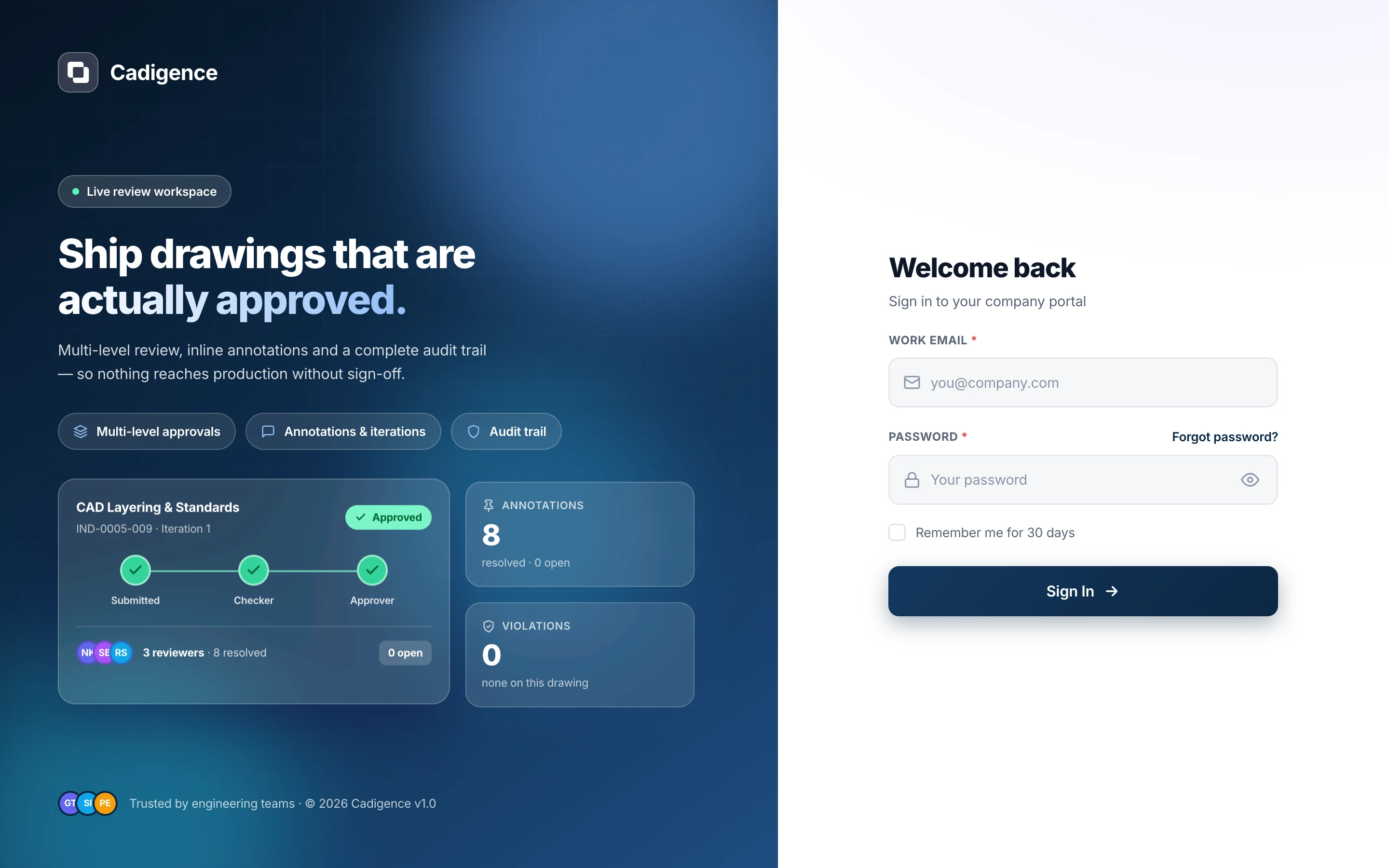
- You’re taken to the sign-in page. Sign in with your email and new password.
If you didn’t get an invitation, ask your administrator to send (or resend) one. Invite links expire after a short time for security.
Sign in to the web portal
Section titled “Sign in to the web portal”Go to your Cadigence portal in any modern browser (Chrome, Edge, Firefox, or Safari) and sign in with your email and password. Once signed in you’ll land on the Dashboard.
Google and Microsoft single sign-on (SSO) are on the roadmap; today, sign-in is email and password.
Sign in to the plugin (designers)
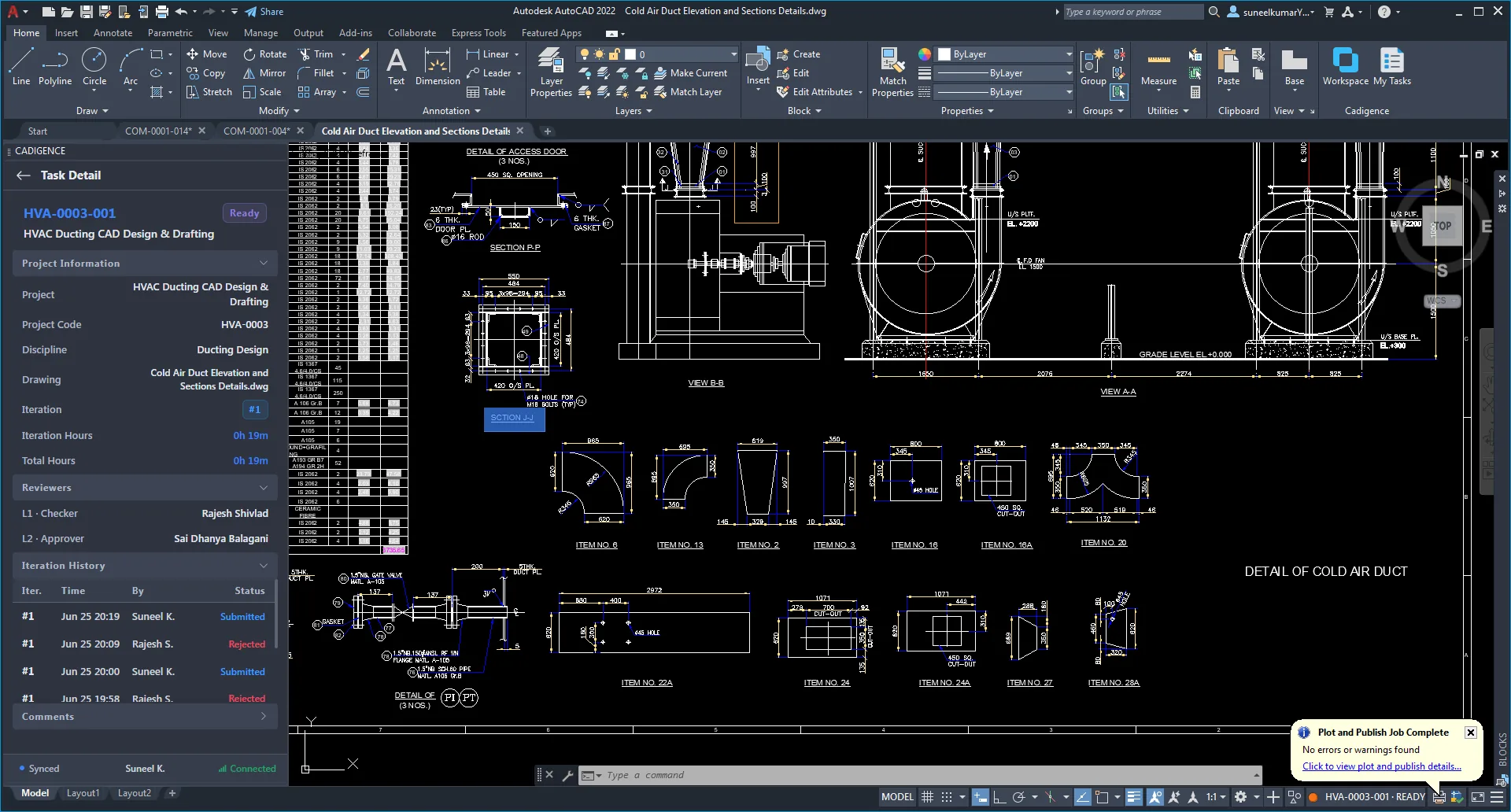
Section titled “Sign in to the plugin (designers)”- Open the Cadigence palette in AutoCAD.
- Sign in with the same email and password you use for the portal.
Once signed in, the plugin connects to your company workspace and shows the projects and tasks assigned to you.
Trouble signing in?
Section titled “Trouble signing in?”- Forgot your password? Use the Forgot password link on the sign-in page to reset it by email.
- Account locked? After several failed attempts, sign-in is temporarily locked for a couple of minutes. Wait, then try again, or reset your password.
- Plugin can’t connect? Confirm you can sign in to the web portal first, then check that your AutoCAD machine has internet access.
Next: Your first review.