
Notifications
Cadigence tells the right person when it’s their turn, so drawings don’t sit waiting because someone didn’t know.
Where notifications appear
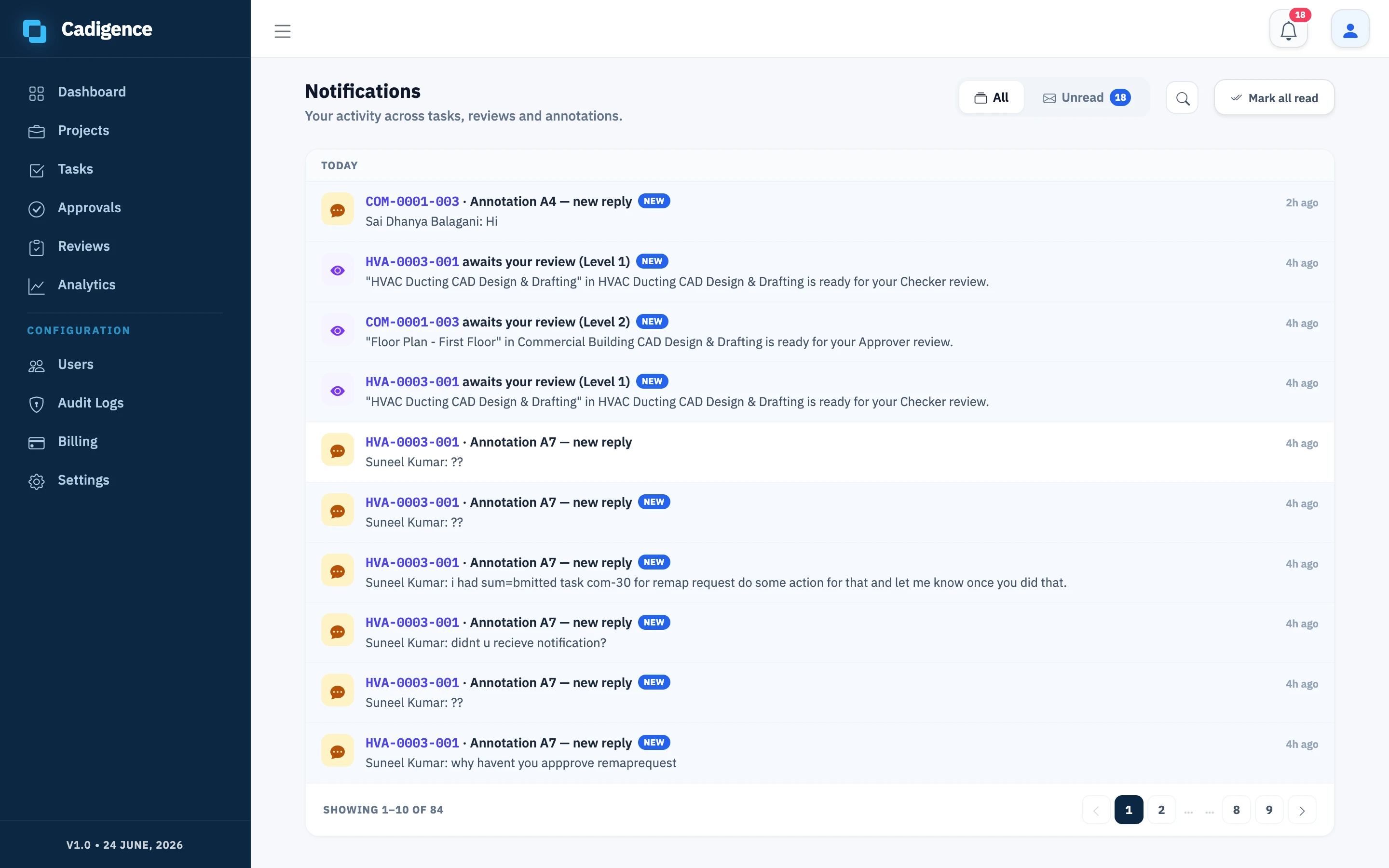
Section titled “Where notifications appear”- In the web portal: a bell in the top bar shows your unread count. Open it to see recent notifications, click one to jump to the task, and mark items as read.
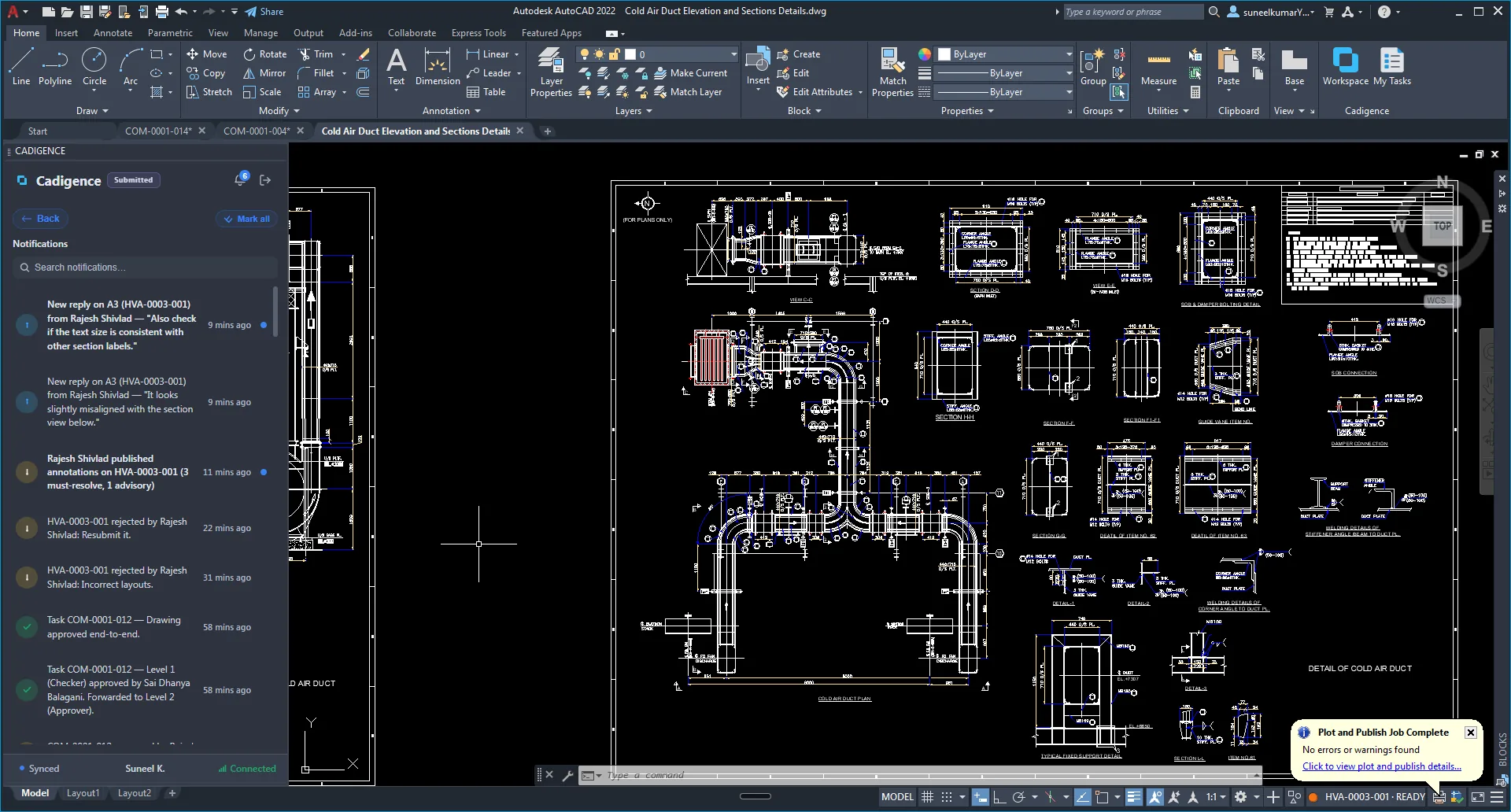
- In the plugin: designers see replies, revisions, and approvals appear in AutoCAD as they happen, so you never have to chase a status.
- By email: key moments are also sent by email, with a link straight to the task.
What triggers a notification
Section titled “What triggers a notification”Typical events that notify the right people:
- A drawing is submitted, the next reviewer is notified.
- A drawing is returned for revision, the designer is notified, with the comments to address.
- A drawing is approved, the designer is notified; if there’s another level, the next reviewer is notified.
- A reply is posted on a comment.
- An invitation is accepted.
Violations are not sent as notifications. They’re recorded in the audit log and surfaced in the analytics compliance view, so managers can review them there.
Notification preferences
Section titled “Notification preferences”Today, notifications fire automatically for the events above, there’s nothing to configure. Per-event notification preferences, letting admins turn specific notifications on or off for the company, are planned but not available yet.