
Manager
As a manager you set up the work and keep it moving: projects, tasks, approval pipelines, and the dashboards that show where everything stands. You work in the web portal, and you can also review drawings for free.
Set up a project
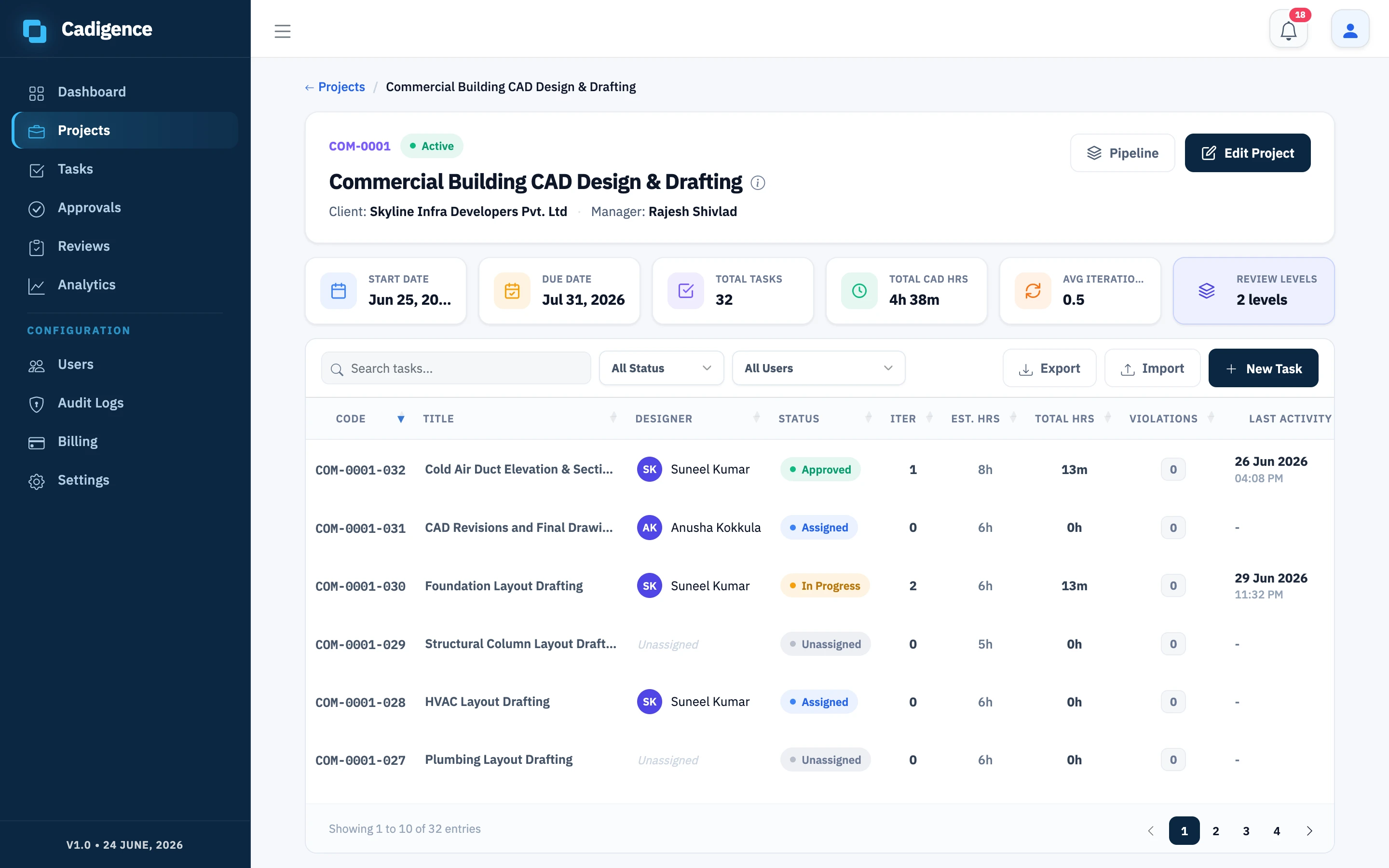
Section titled “Set up a project”- Go to Projects and create a new project.
- Give it a name and a client, set the dates, and add the designers who’ll work on it. A project code is generated for you.
- Save. The project appears in your projects list with live counts of tasks, hours, and activity.
See Managing projects and tasks for the full details, including bulk task import.
Add tasks
Section titled “Add tasks”- Open Tasks (or the project) and create a task.
- Give it a title, pick the project, and assign a designer. A task code is generated from the project code automatically.
- Repeat, or import many tasks at once from a CSV or Excel file.
Set up the approval pipeline
Section titled “Set up the approval pipeline”Each project has an approval pipeline, the levels a drawing passes through before it’s done.
- From Reviews, open the pipeline for the project.
- Pick a template, Simple (1 level), Standard (2), Full (3), or Custom (build your own, 1–5 levels).
- For each level, set a name, an authority type (technical check, engineering approval, or client acceptance), and assign a reviewer. You can also set a substitute reviewer to stand in, and choose where a returned drawing resumes.
- Save.
See Multi-level approval for how this works in practice.
Keep work moving
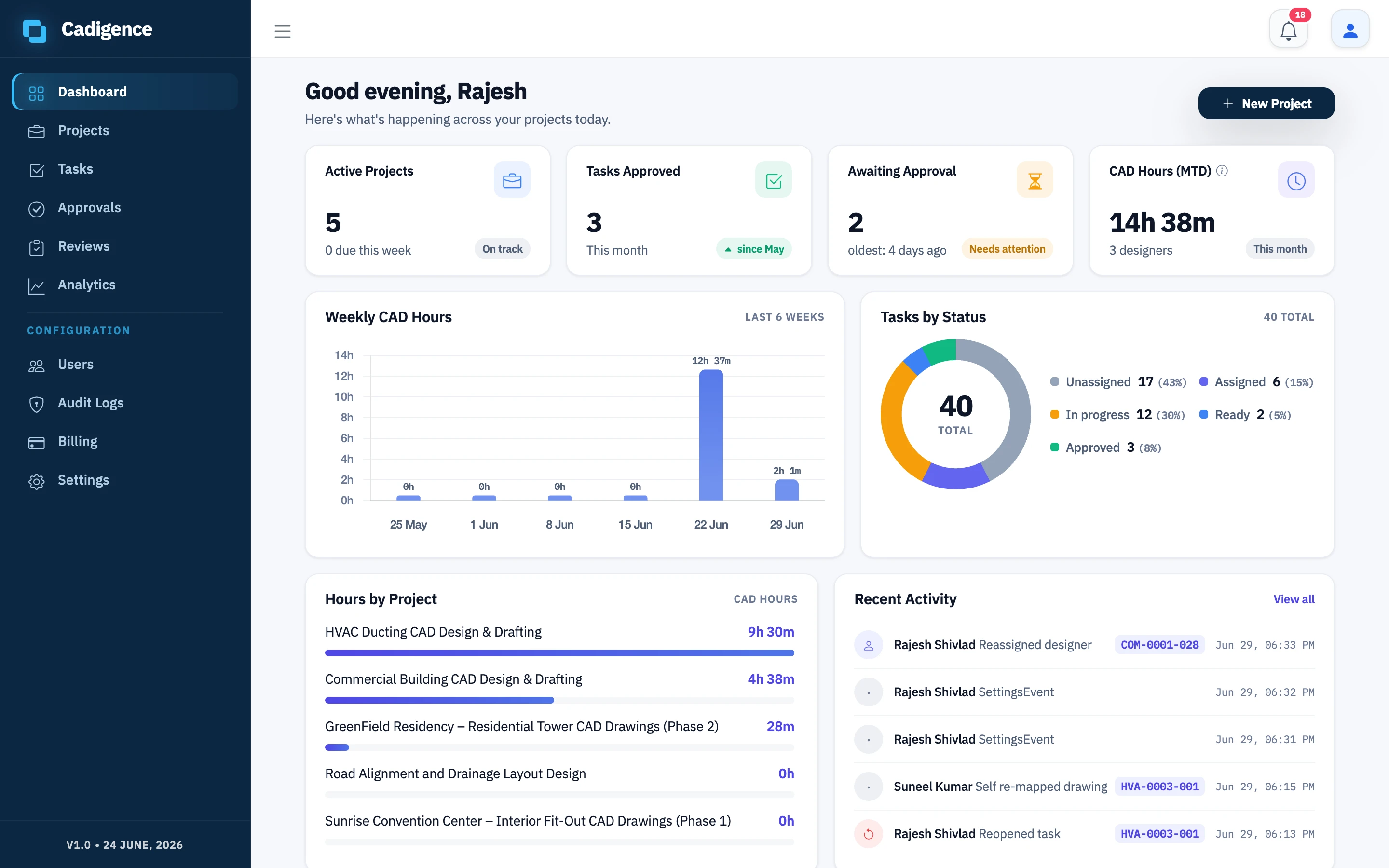
Section titled “Keep work moving”- Dashboard: active projects, approvals waiting on you, CAD hours, and tasks by status, at a glance.
- Reviews: every drawing in review, the level it’s on, and who has it. Spot what’s stuck.
- Analytics: turnaround, reopen rate, iterations, and violations, so you can quote and plan with real numbers. See Analytics and reports.
- Audit log: the full, timestamped history of every drawing.
Reopen an approved task
Section titled “Reopen an approved task”If an approved drawing genuinely needs to change, reopen the task so the designer can edit it without triggering a violation.