
Managing projects and tasks
Projects and tasks are how work is organised in Cadigence. A project groups related drawings for one client or job; a task is one drawing’s worth of work that a designer owns and submits for review. Managers and admins set these up in the web portal.
Create a project
Section titled “Create a project”- Go to Projects and start a new project.
- Fill in the details:
- Project name and client, what the work is and who it’s for.
- Dates: start and due dates.
- Manager: who owns the project (admins can assign another manager).
- Designers: the team members who’ll be assigned tasks.
- Save. Cadigence generates a project code (for example
PRJ-0001) used to number every task in the project.
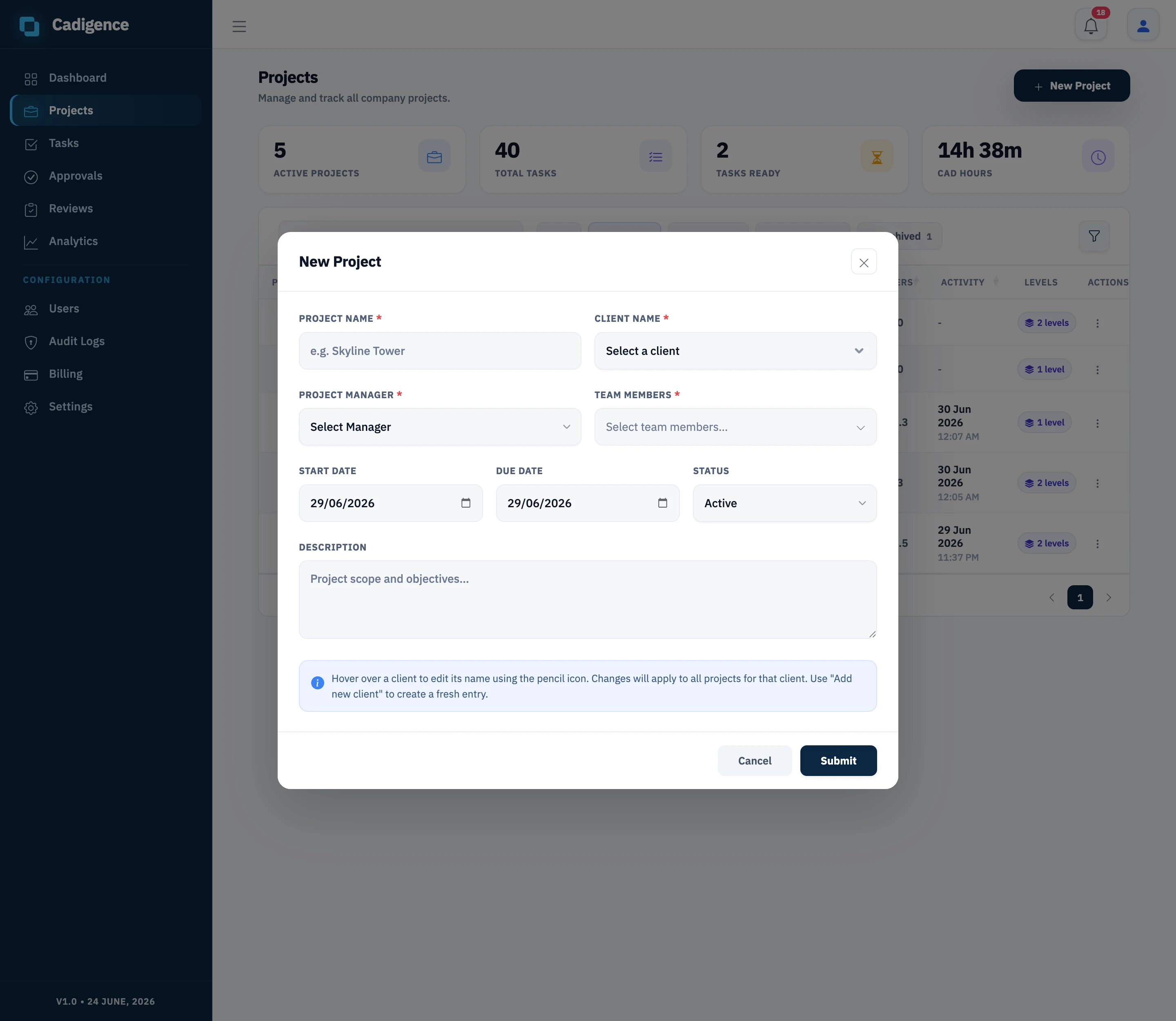
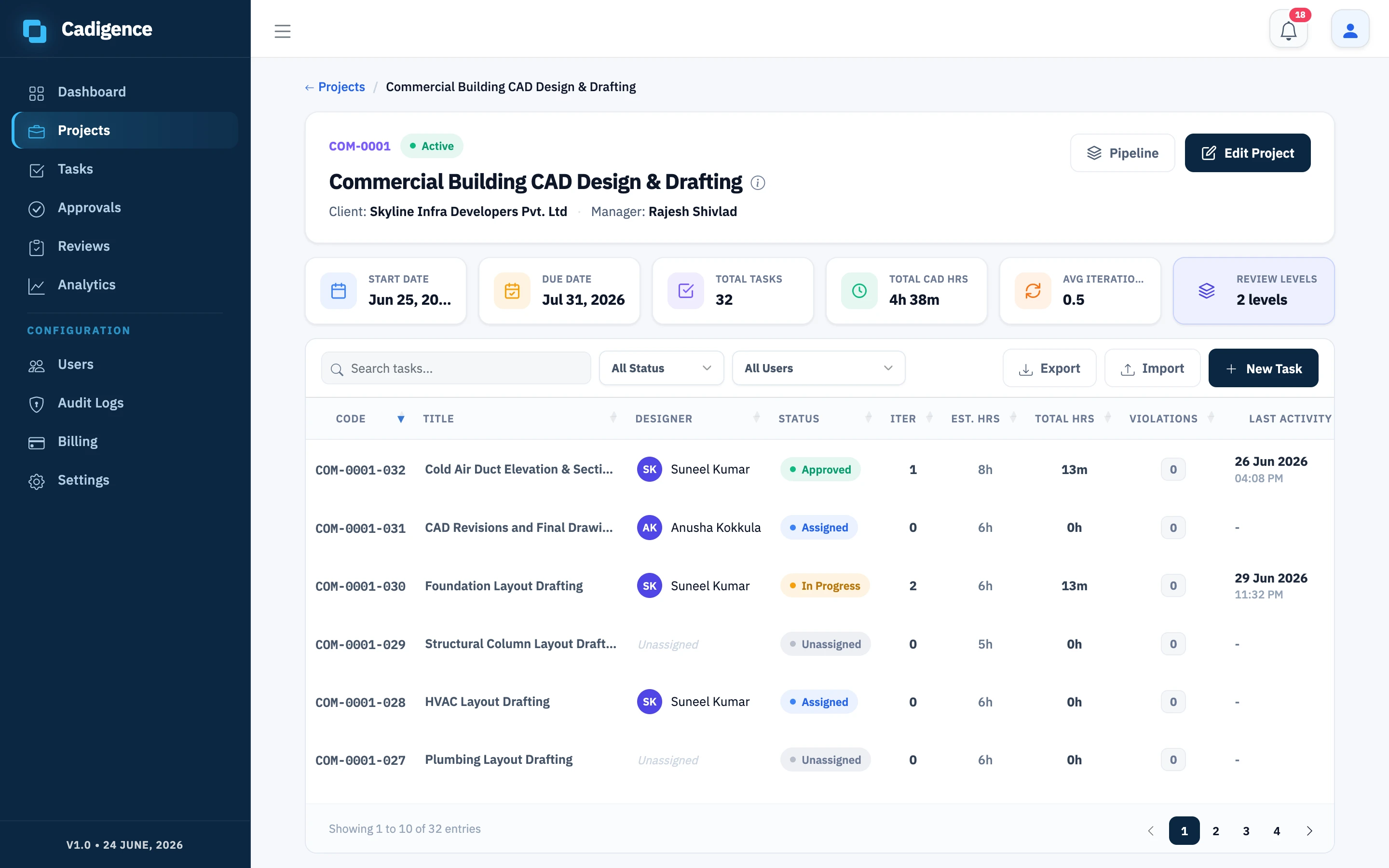
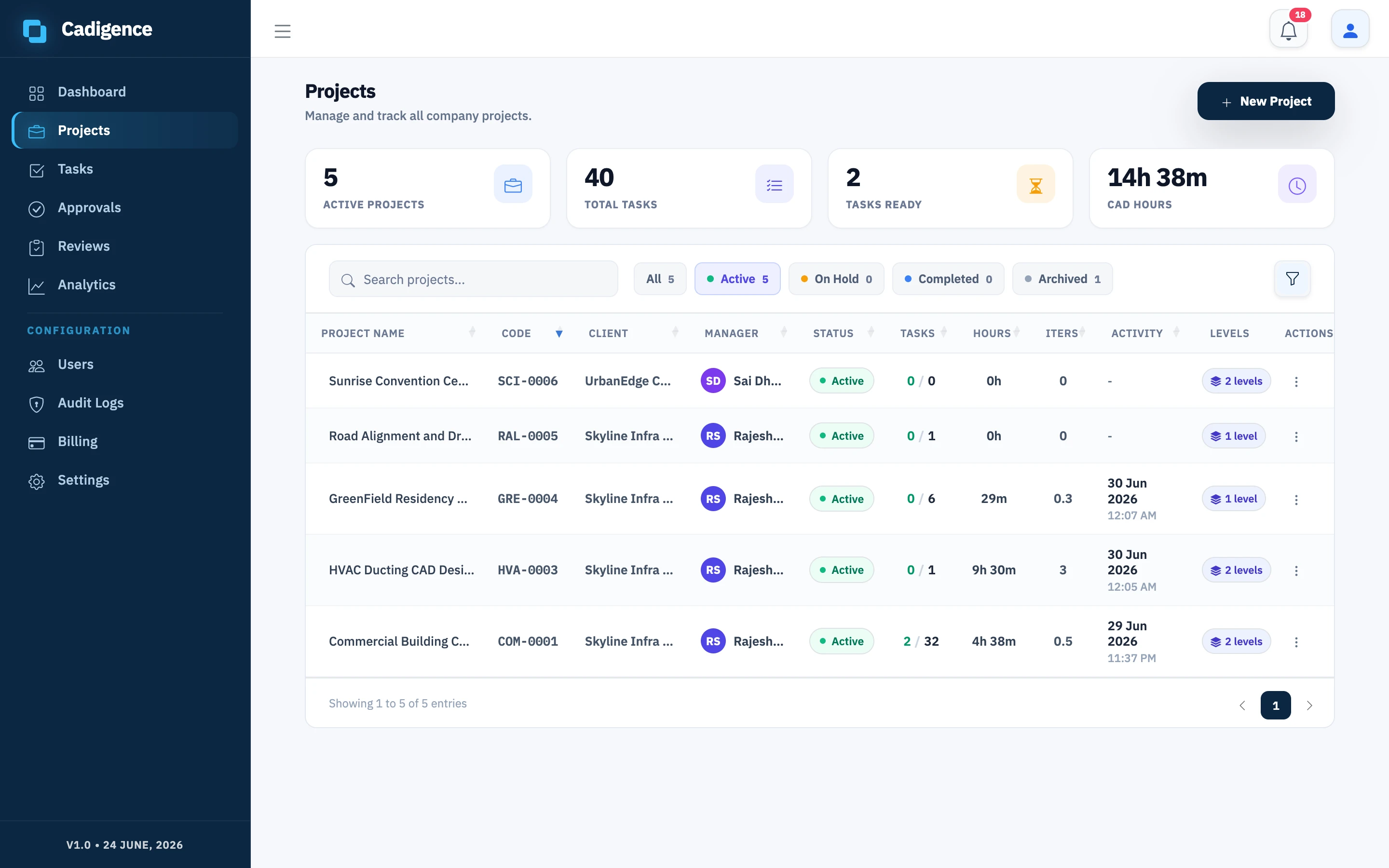
You can edit a project later to adjust dates, the client, or the team. A project can be active, on hold, completed, or archived.
Add tasks
Section titled “Add tasks”A task represents one drawing through its review.
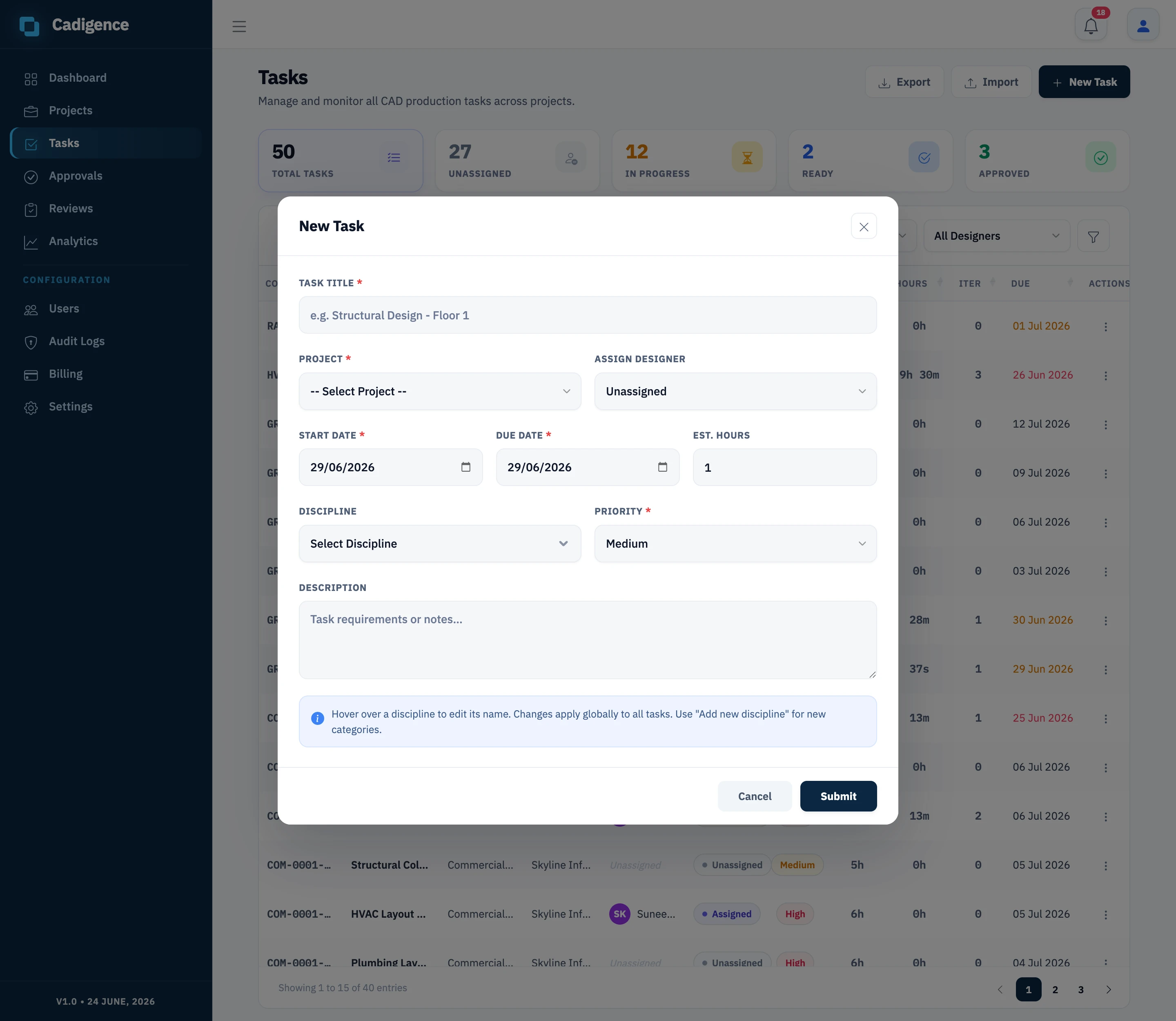
- Open Tasks (or the project) and create a task.
- Set a title, pick the project, optionally set a discipline, and assign a designer.
- Save. A task code is generated from the project code and a sequence number (for example
PRJ-0001-0007). The designer can now map a drawing to this task from the plugin.
Import many tasks at once
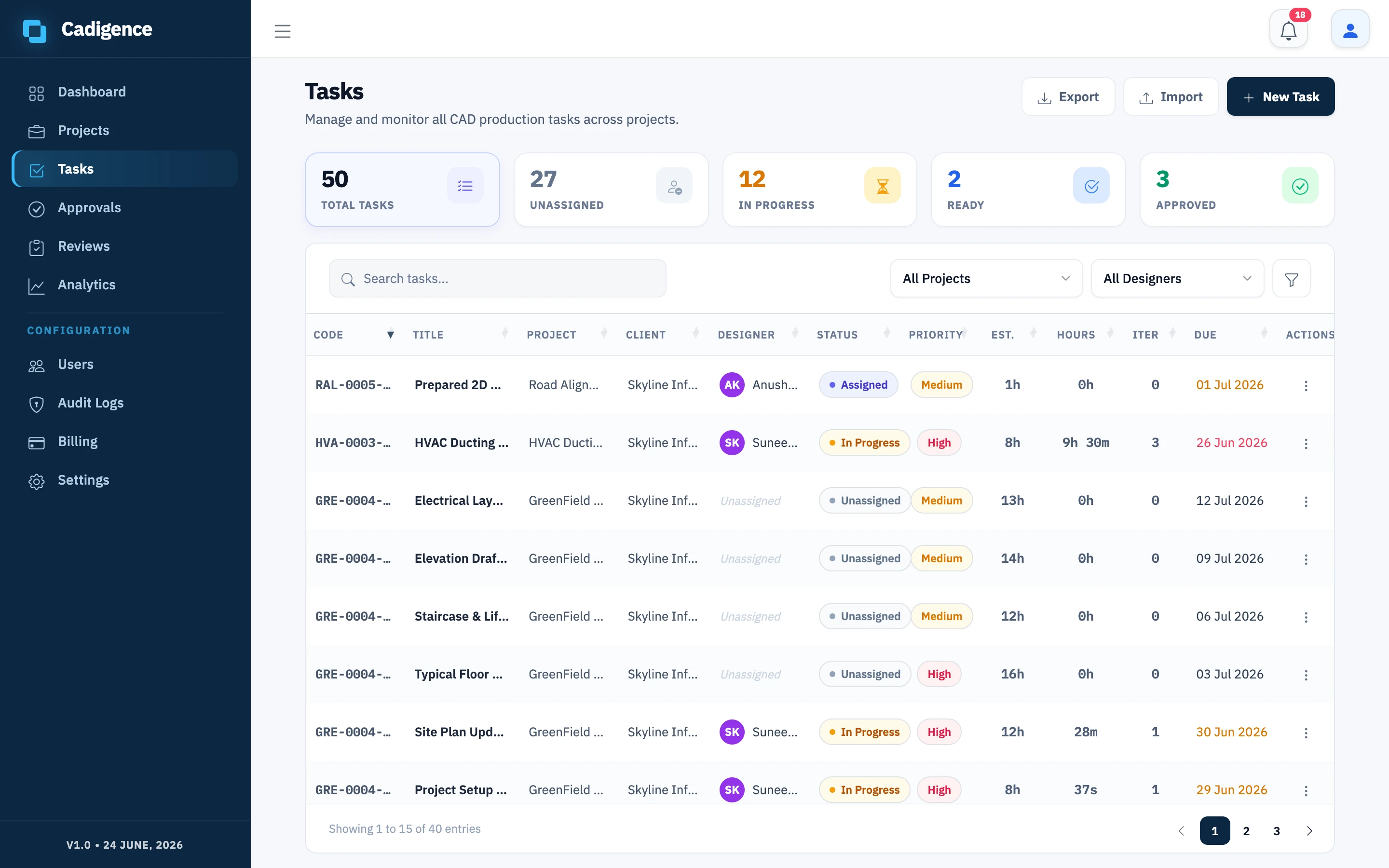
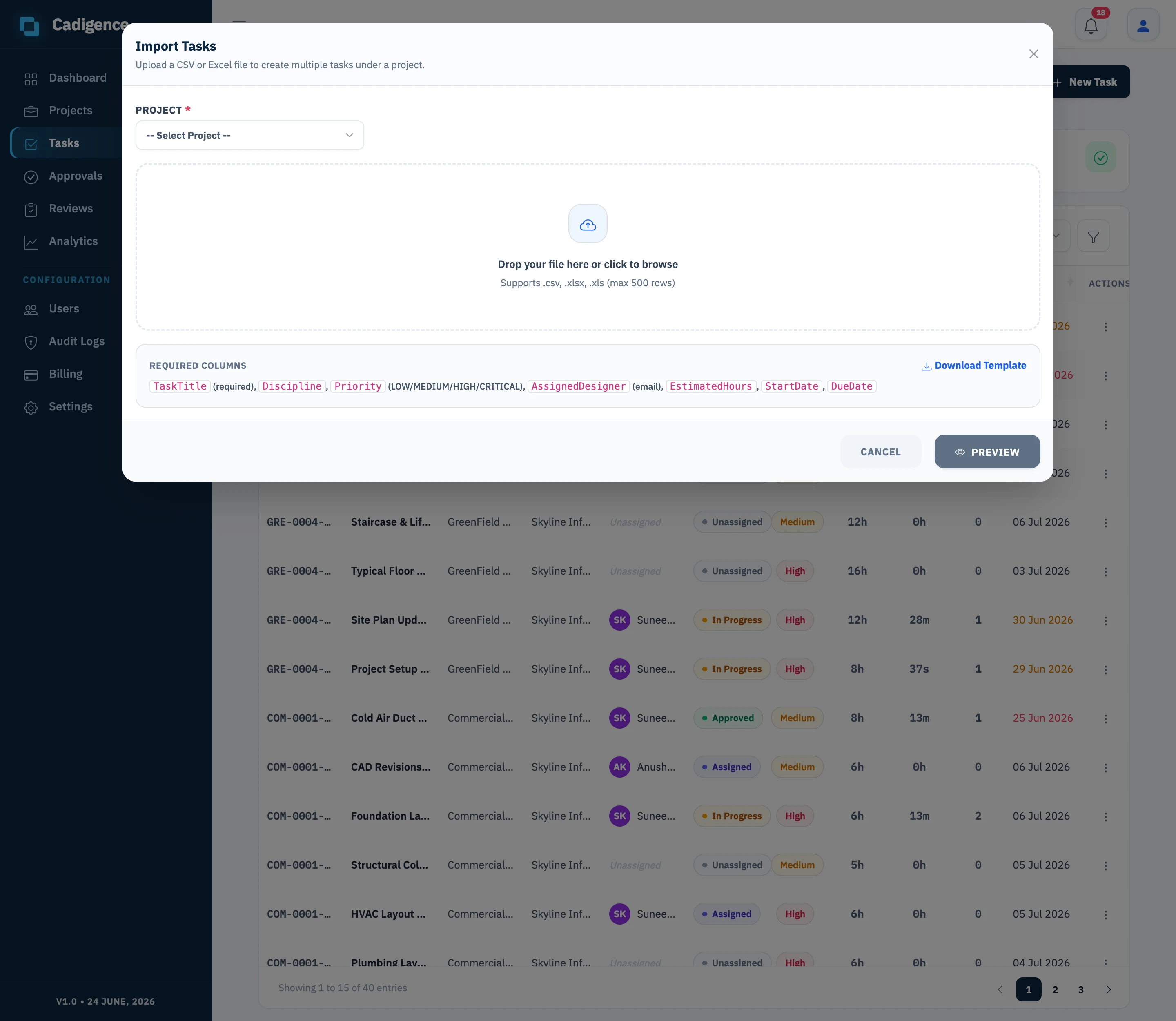
Section titled “Import many tasks at once”To set up a project quickly, use Import on the Tasks screen to bring in tasks from a CSV or Excel file, titles, disciplines, and designer assignments in one go. Task codes are generated automatically for any you don’t supply.
Track and export
Section titled “Track and export”The Tasks and Projects lists show live status: how many tasks are in progress, ready, or approved, total CAD hours, average iterations, and last activity. You can export these lists to CSV/Excel for reporting.
See Statuses and states for what each status means, and Multi-level approval to set up how tasks get reviewed.