
Comments and severity
Reviewers create comments in the web portal; the designer sees them pinned on the drawing in AutoCAD. Every comment is pinned to a place on the drawing and carries a severity.
Severity
Section titled “Severity”- Must-resolve: the designer must fix it before the drawing can move forward. A drawing can’t be resubmitted while a must-resolve comment is still open, and a level can’t be approved until each one has been addressed and the reviewer has closed it.
- Advisory: informational guidance. The designer doesn’t resolve advisory comments, there’s no resolve action on them in the plugin, and they never block resubmission or approval. They’re notes to take into account, and the reviewer closes them automatically when they approve the drawing.
Severity decides what gates the workflow. Must-resolve items are the hard gate the designer works through; advisory items ride along as guidance and are closed for the designer when the reviewer signs off.
The comment lifecycle
Section titled “The comment lifecycle”A comment moves through a simple lifecycle:
- Draft: the reviewer is still marking up; only they can see it.
- Open: published to the designer. It now appears on the drawing in AutoCAD.
- Resolved: the designer has fixed a must-resolve comment and marked it resolved. Advisory comments skip this step. The designer can’t resolve them.
- Completed: the comment is closed. The reviewer closes a must-resolve comment when they’ve verified the fix; advisory comments are closed automatically when the reviewer approves the drawing.
If a reviewer isn’t satisfied with a fix, they can reopen a resolved comment, sending it back to open for another pass.
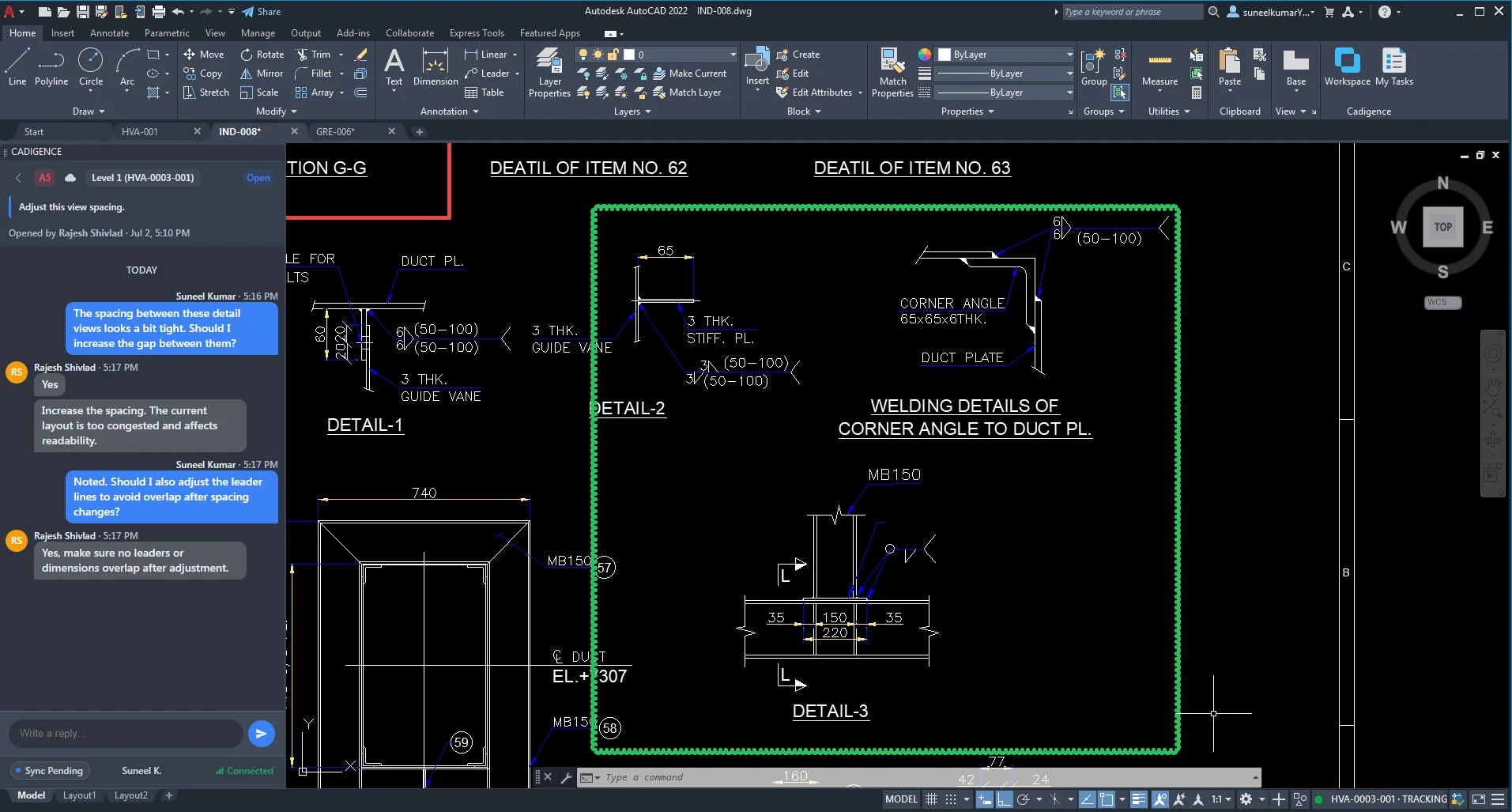
Replies
Section titled “Replies”Each comment has its own reply thread, so a question and its answer stay attached to the exact point on the drawing they’re about, not buried in a separate email.
Comment codes
Section titled “Comment codes”When comments are published they’re numbered (for example A1, A2), so the designer and reviewer
can refer to the same comment unambiguously.
See Reviewing a drawing to create comments, and the Designer guide to resolve them.