
Designer
As a designer you produce drawings in AutoCAD, submit them for review, and respond to the comments that come back. You work in the AutoCAD plugin; you don’t create review comments yourself. You view, reply, resolve, and resubmit.
Map a drawing to a task
Section titled “Map a drawing to a task”Before you can submit, the drawing has to be linked to one of your tasks.
- Open the drawing in AutoCAD with the Cadigence palette signed in.
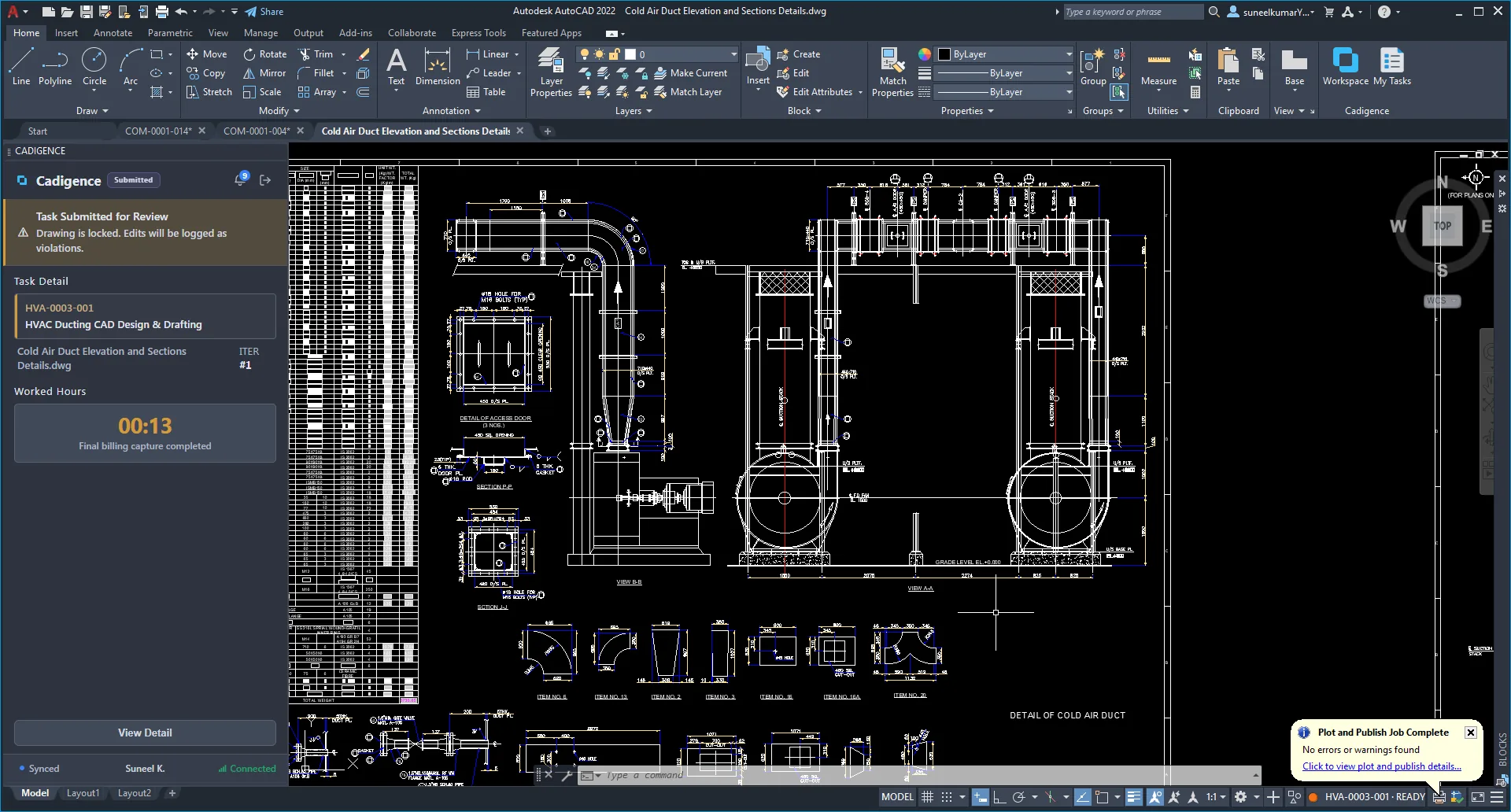
- Choose the task this drawing belongs to and map it. The plugin shows the task code, project, and current iteration.
Once mapped, Cadigence tracks your effort on this drawing automatically while you work. It counts only your active time and pauses when you switch away or leave AutoCAD, so idle time is never counted. There are no timers to start. See Time tracking.
Submit for review
Section titled “Submit for review”- When the drawing is ready, click Submit for review.
- The plugin renders the drawing to a PDF and uploads it. Your DWG is never modified.
- The task moves to Ready and locks. Effort tracking stops until the drawing comes back.
You can’t submit while a must-resolve comment from a previous round is still open.
Work the comments
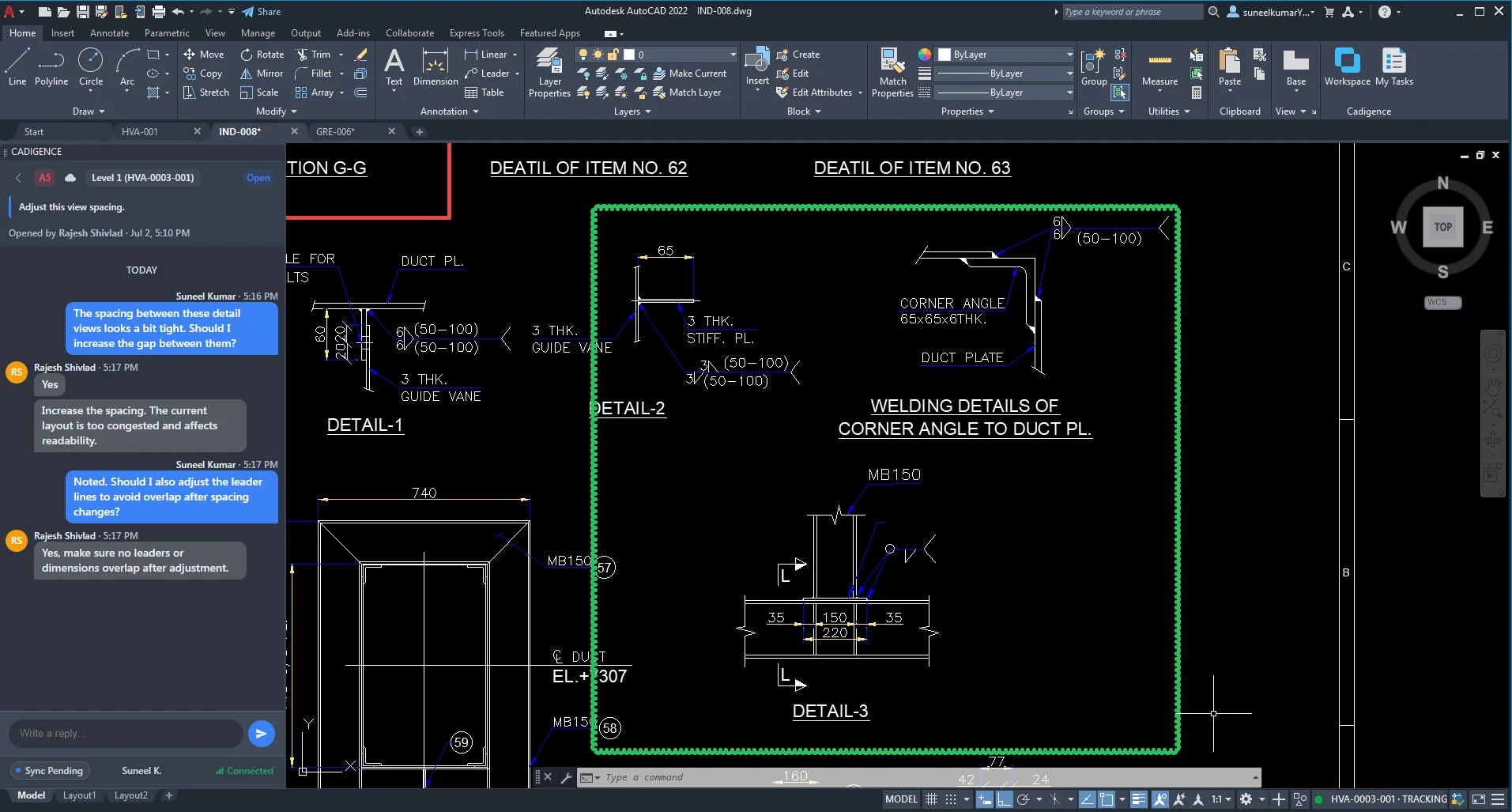
Section titled “Work the comments”When a reviewer returns the drawing, the task moves back to In progress and the comments appear pinned on your drawing in AutoCAD.
- Start with must-resolve. These are the hard gate. You can’t resubmit until each one is fixed. Advisory comments are guidance to take into account; there’s no resolve action on them, and the reviewer closes them when they approve.
- Jump to each comment to zoom to the exact spot on the drawing.
- Fix it, then mark the must-resolve comment resolved. Reply on a comment if you need to ask a question or explain a change.
- Once every must-resolve comment is resolved, submit again.
The reviewer then verifies each fix (or reopens it if more work is needed) and approves or returns the drawing again.
Keep an eye on status
Section titled “Keep an eye on status”The plugin shows each task’s status, In progress, Ready (under review), or Approved, along with how many comments are waiting and how many are must-resolve. You’ll also get notifications when a drawing is returned or approved. See Statuses and states.
Don’t edit an approved or in-review drawing
Section titled “Don’t edit an approved or in-review drawing”While a drawing is Ready (under review) or already Approved, changing it is flagged as a violation. If you genuinely need to change an approved drawing, ask your manager to reopen the task first. See Violations and drawing integrity.