
Time tracking
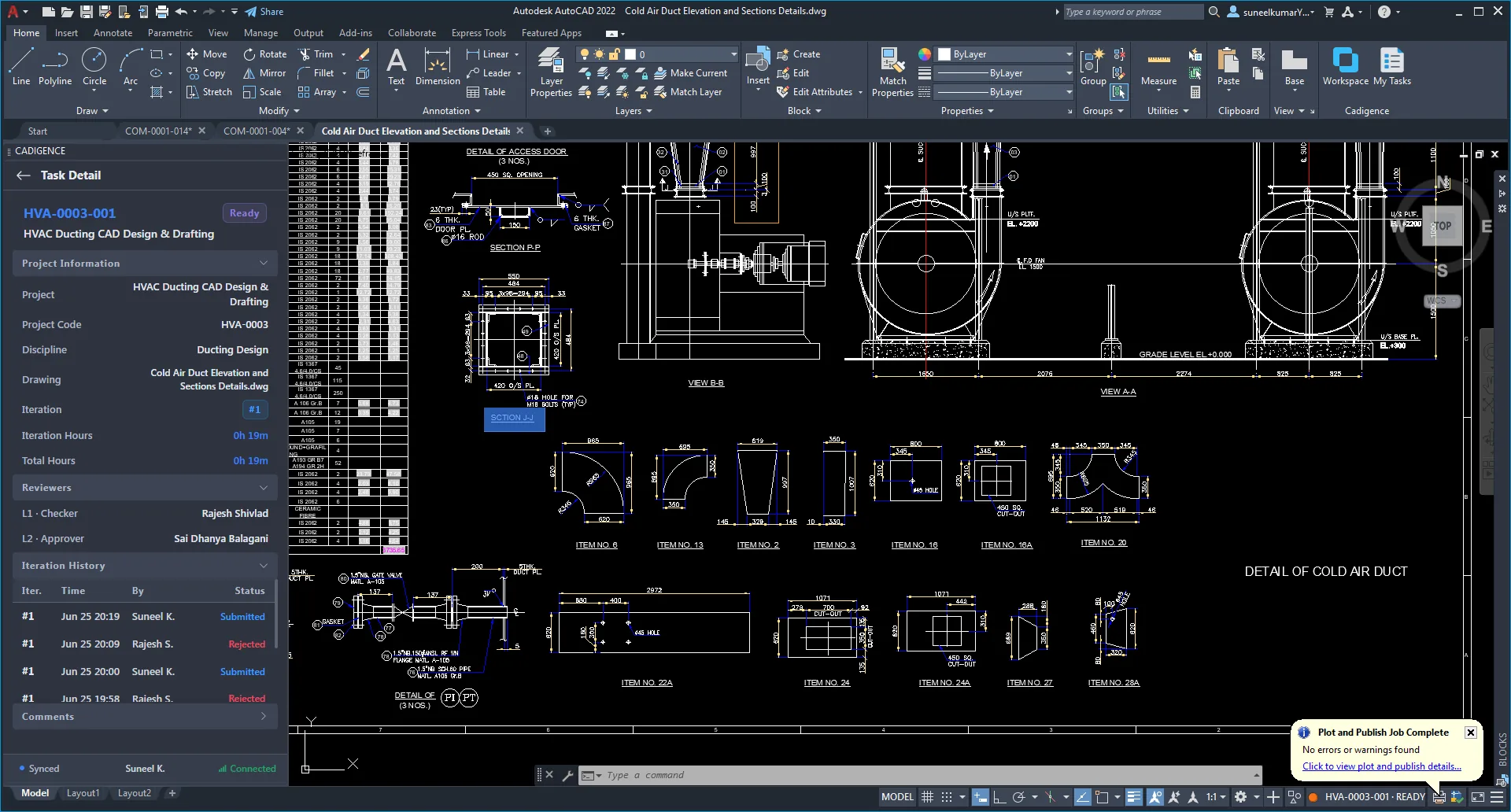
While you work in AutoCAD, the plugin records the time you spend actively working on each drawing. When you switch to another drawing, leave AutoCAD, or go idle, tracking pauses, so idle time is never counted. There are no timers to start and no timesheets to fill in.
Tracking runs only while a drawing is being worked on: it stops the moment you submit it for review, and does not run after approval.
What’s tracked
Section titled “What’s tracked”- Active time: the time you’re actively working on the drawing in AutoCAD.
- Auto-pause: switch to another drawing, leave AutoCAD, or go idle, and the clock pauses, so idle time is never added to your hours.
- Iterations: each round of work on a drawing is counted, so you can see how many passes a drawing took.
Effort is tied to the task the drawing is mapped to, so make sure your drawing is mapped before you start working. Time recorded against a drawing that isn’t mapped to a task can be flagged, see Violations and drawing integrity.
Where it shows up
Section titled “Where it shows up”Effort is rolled up per iteration and per project, and feeds the dashboard and analytics:
- CAD hours on the dashboard and per project.
- Average iterations and reopen rate.
- Approval turnaround and on-time approval.
Use it to quote and plan with real numbers instead of estimates. See Analytics and reports.