
Violations and drawing integrity
Cadigence is careful with your drawings, and it keeps an honest record of what happened to each one.
Your DWG is never changed
Section titled “Your DWG is never changed”The plugin only ever reads your drawing to create a review PDF. It never writes anything back to your DWG file, so your original stays exactly as you saved it. The only thing uploaded to Cadigence is the PDF of the drawing you submit, fingerprinted with a SHA-256 hash so you can tell if a file has changed. Drawings are stored privately and can only be opened by signed-in users with access to the project.
Locking during review
Section titled “Locking during review”When a drawing is submitted, the task moves to Ready and locks. This keeps the drawing from changing underneath a reviewer while they’re working on it.
Violations
Section titled “Violations”If a drawing is changed when it shouldn’t be, Cadigence flags it as a violation and records it in the audit log. There are three kinds:
- Approved drawing modified: an approved drawing was edited without first reopening the task.
- Ready drawing modified: a drawing was edited while it was submitted and under review.
- Unmapped drawing modified: time was tracked on a drawing that isn’t mapped to a task.
Violations show up in the Compliance view in analytics and in the audit log, broken down by designer and project, so managers can see where process is slipping.
How to avoid them
Section titled “How to avoid them”- Don’t edit a drawing while it’s Ready (under review). Wait for it to come back.
- To change an Approved drawing, ask your manager to reopen the task first.
- Keep your drawing mapped to its task while you work.
The audit log
Section titled “The audit log”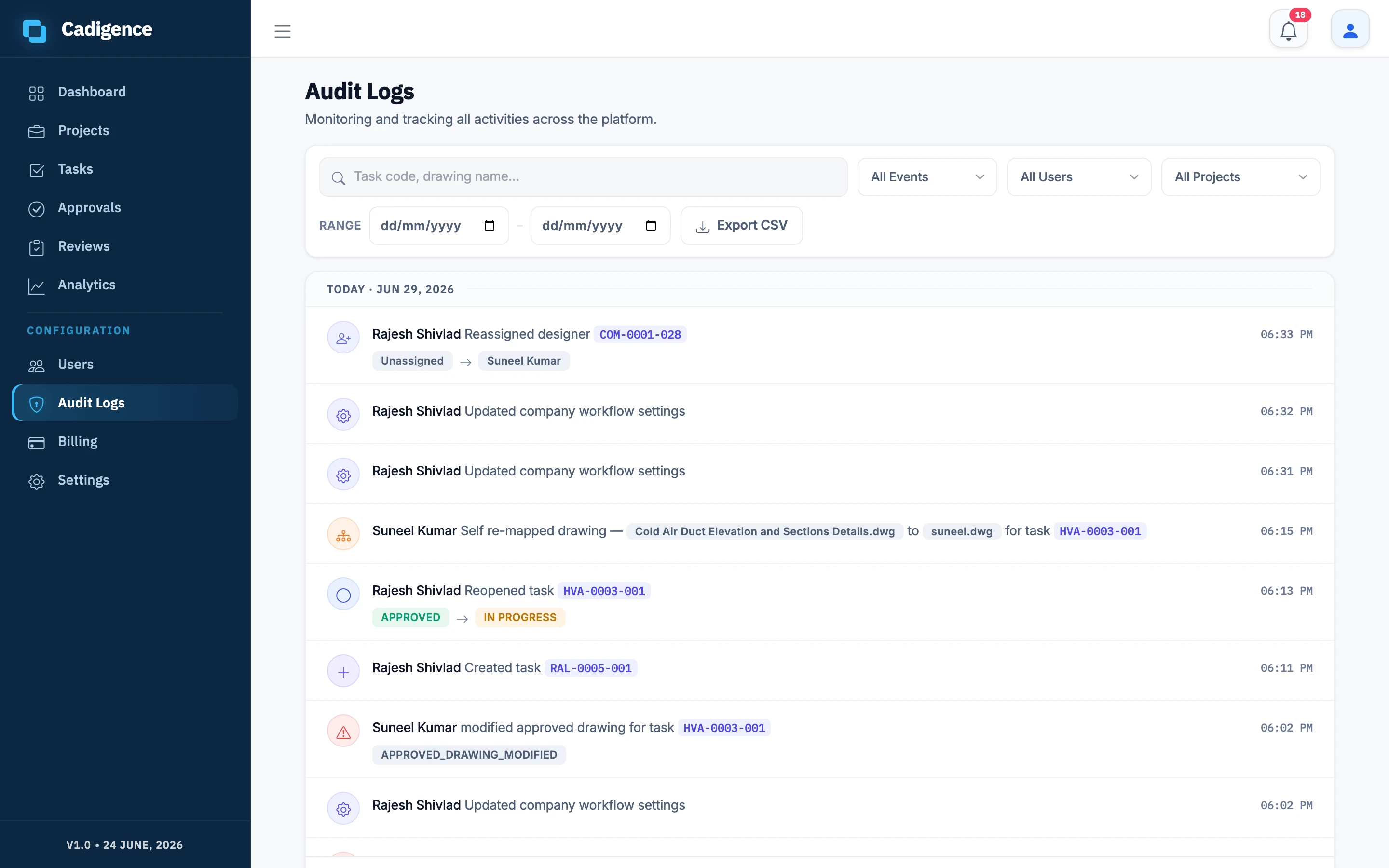
Every submission, approval, level hand-off, revision, mapping change, and violation is recorded in an append-only audit log, each entry stamped with the time and the person who did it. Entries are added, never edited or deleted after the fact.
Managers and admins can browse the audit log under Audit Logs, filter it by date, event type, person, or project, and export it to Excel. When a client questions a decision later, you can show exactly who reviewed the drawing, when, what was flagged, and who approved it.