
Reviewing a drawing
Reviewers, checkers, approvers, managers, and clients, do all their work in the web portal. This guide covers the full review screen, from opening the PDF to making a decision.
Open a review
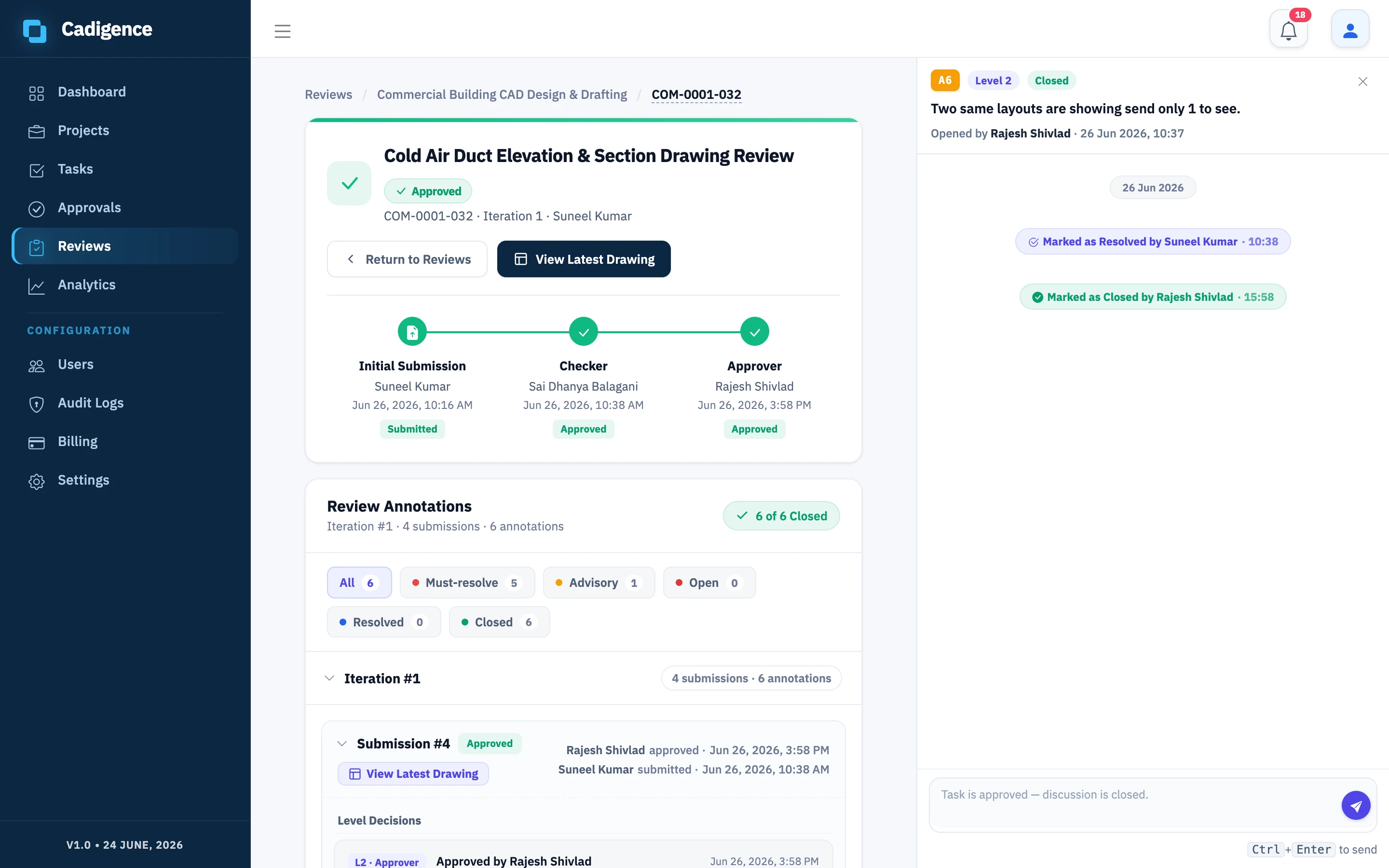
Section titled “Open a review”- Go to Reviews. Drawings waiting on you show in your queue; you’ll also get a notification when one is submitted.
- Open the task. You’ll see the approval trail (who submitted, which level it’s on) and the review PDF in the viewer.
Mark up the drawing
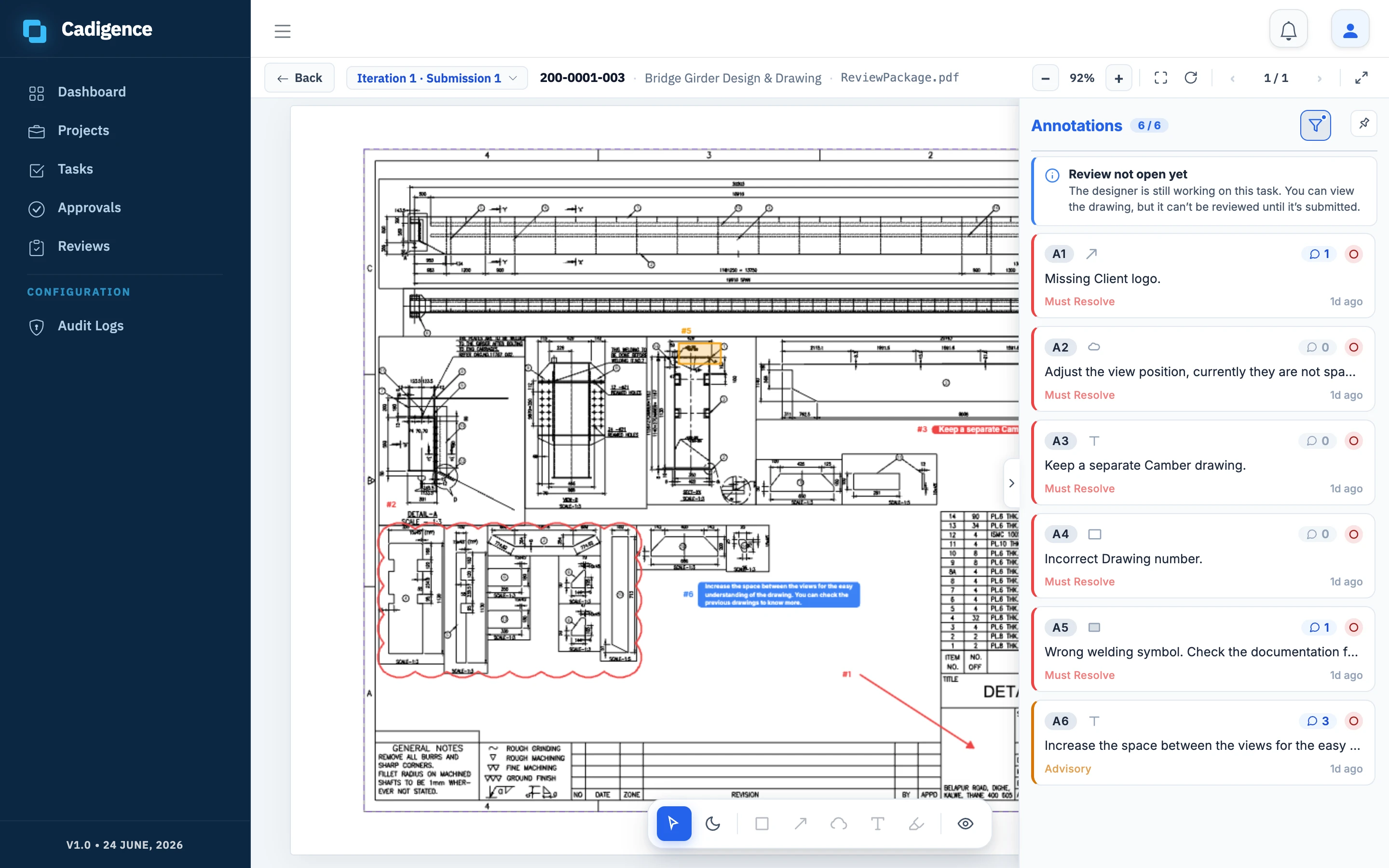
Section titled “Mark up the drawing”Open the PDF viewer and use the markup tools to point at exactly what needs work:
- Cloud: circle a region that needs attention.
- Rectangle and Arrow, box or point to a detail.
- Text: drop a written note.
- Highlight: emphasise part of the drawing.
Each markup is pinned to the spot on the drawing. When the designer opens the drawing in AutoCAD, your comment appears in that exact place.
Set severity
Section titled “Set severity”Tag every comment:
- Must-resolve: the designer must fix it before the drawing can move forward.
- Advisory: informational guidance. The designer doesn’t resolve advisory comments, and they don’t gate resubmission or approval; they’re closed automatically when you approve the drawing.
See Comments and severity for how severity drives the workflow.
Drafts and publishing
Section titled “Drafts and publishing”As you mark up, your comments are saved as drafts, visible only to you, so you can review the whole drawing before sending anything. When you’re ready, publish them. Publishing sends them to the designer all at once and notifies them. (Returning a drawing for revision publishes your drafts automatically.)
Replies
Section titled “Replies”Every comment has its own reply thread. You and the designer can go back and forth on a specific comment without losing track of which point you’re discussing.
Make a decision
Section titled “Make a decision”When you’ve finished reviewing, choose:
- Approve: passes the drawing to the next level, or finalises it if you’re the last level.
- Approve with conditions: approve while recording conditions to follow up on.
- Return for revision: send it back to the designer with your comments.
You can’t approve while a must-resolve comment on your level is still unaddressed, close it first. Advisory comments don’t hold up approval.
Verify fixes on resubmission
Section titled “Verify fixes on resubmission”When the designer resubmits, each must-resolve comment they marked resolved waits for you to confirm it:
- Verify: you’re satisfied the fix is correct; the comment is closed.
- Reopen: the fix isn’t right; the comment goes back to the designer for another pass.
Once you’ve checked the revised drawing and closed the must-resolve comments, approve the drawing or return it again. Approving closes any remaining advisory comments automatically, there’s nothing to action on them by hand. Every decision, with your name, the authority type, and the time, is recorded in the audit log.