Admin
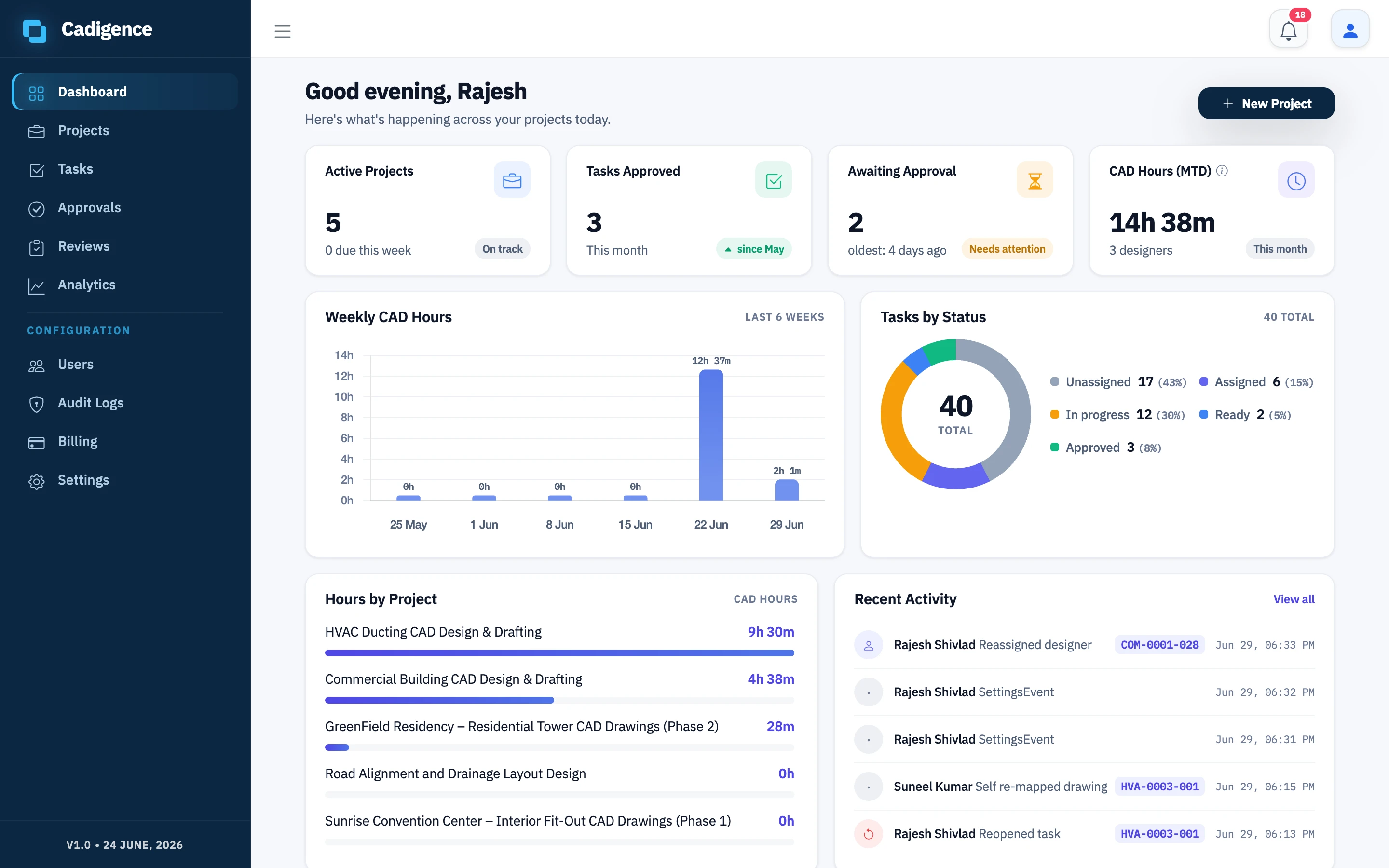
Admins have full control of the company workspace. On top of everything a manager can do, you manage people, company settings, and billing.
Invite people and set roles
Section titled “Invite people and set roles”- Go to Users and invite a new person by email.
- Choose their role:
- Admin: full control of the workspace, settings, and billing.
- Manager: creates and runs projects, tasks, and pipelines; reviews for free.
- Designer: produces drawings in AutoCAD and submits them for review. Uses a seat.
- Send the invite. They’ll get an email, set a password, and appear as Active once they accept.
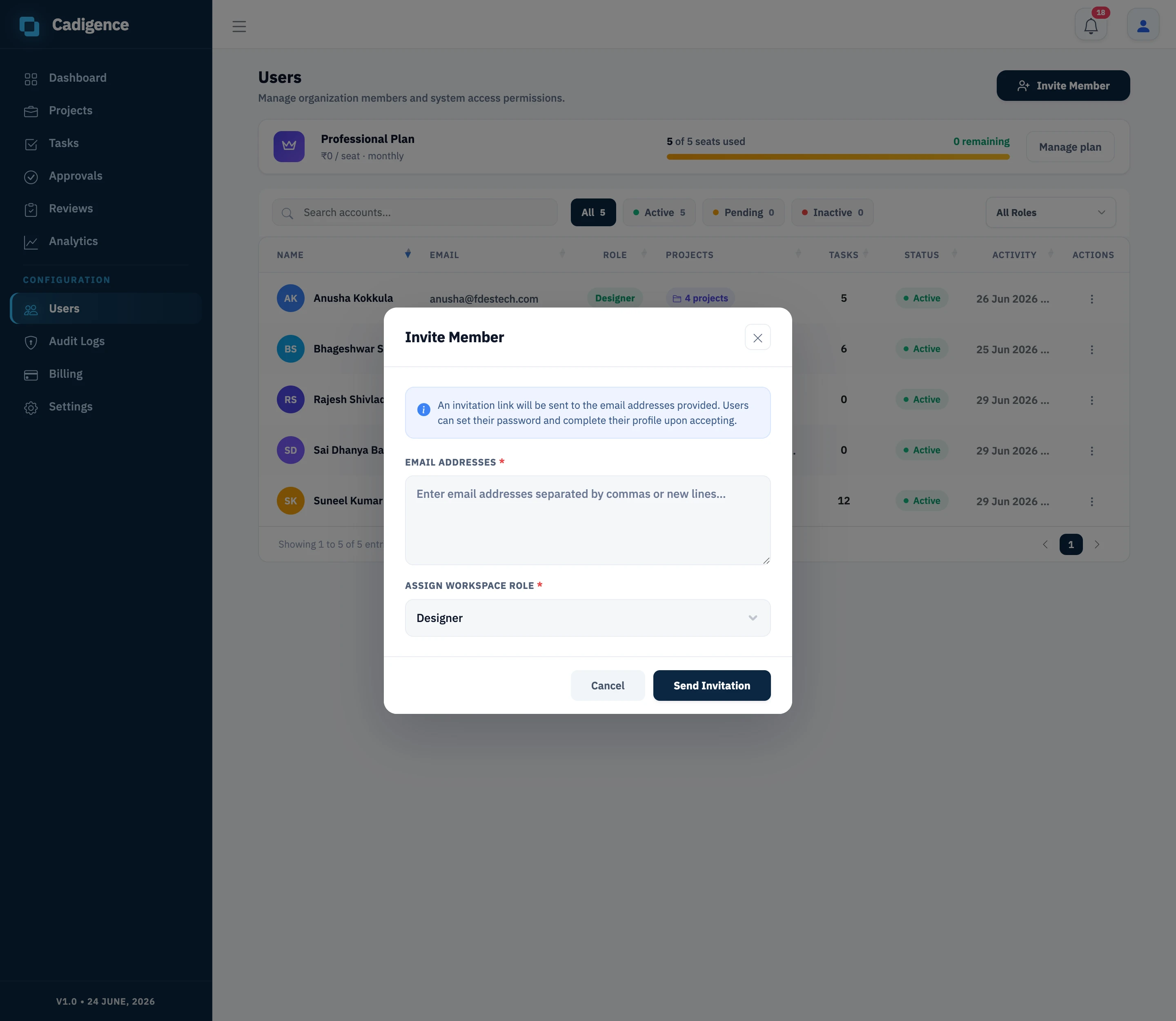
From the Users list you can resend invites, change a person’s role, or deactivate someone who has left. Only designers consume seats, managers, admins, and reviewers don’t. See Roles and permissions.
Company settings
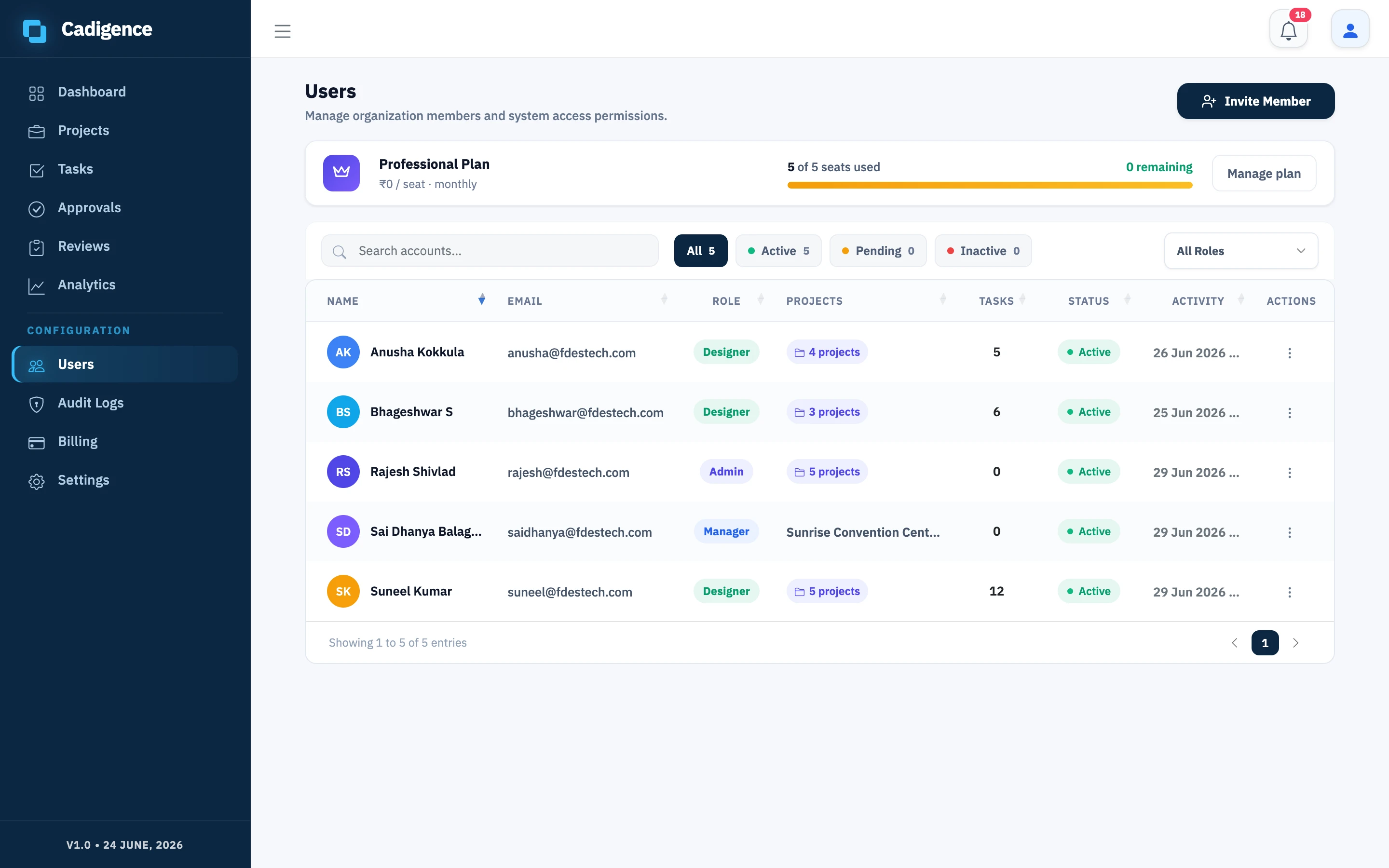
Section titled “Company settings”Under Settings you manage company-wide options: your company profile (name, time zone, GSTIN, logo) and the tracking policy (idle threshold, sync interval, and whether designers can pause tracking). Notifications currently fire automatically for task assignment, status changes, approval requests, and accepted invites; per-event notification preferences are planned but not available yet. Violations are recorded in the audit log, not sent as notifications. See Notifications.
Billing and seats
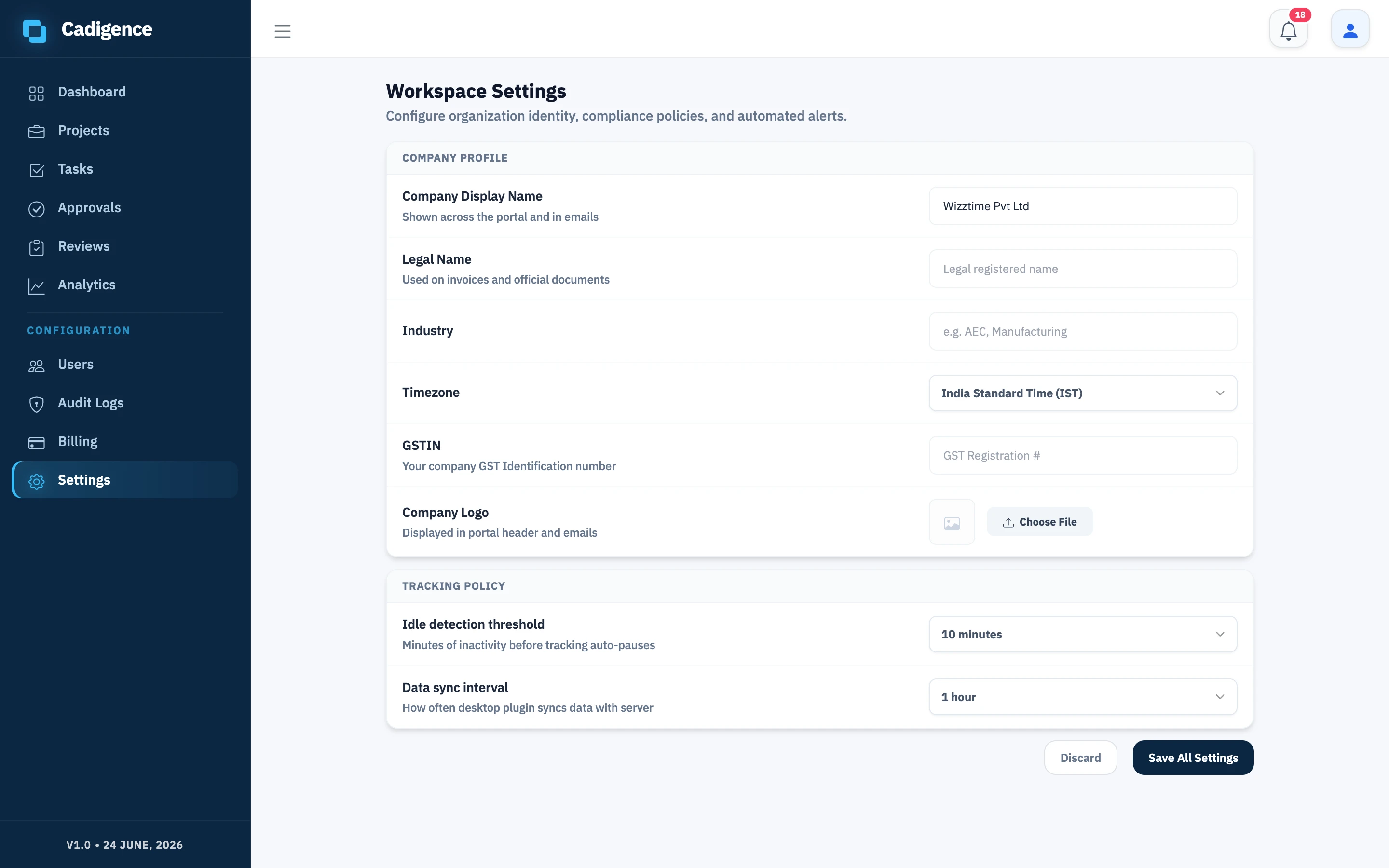
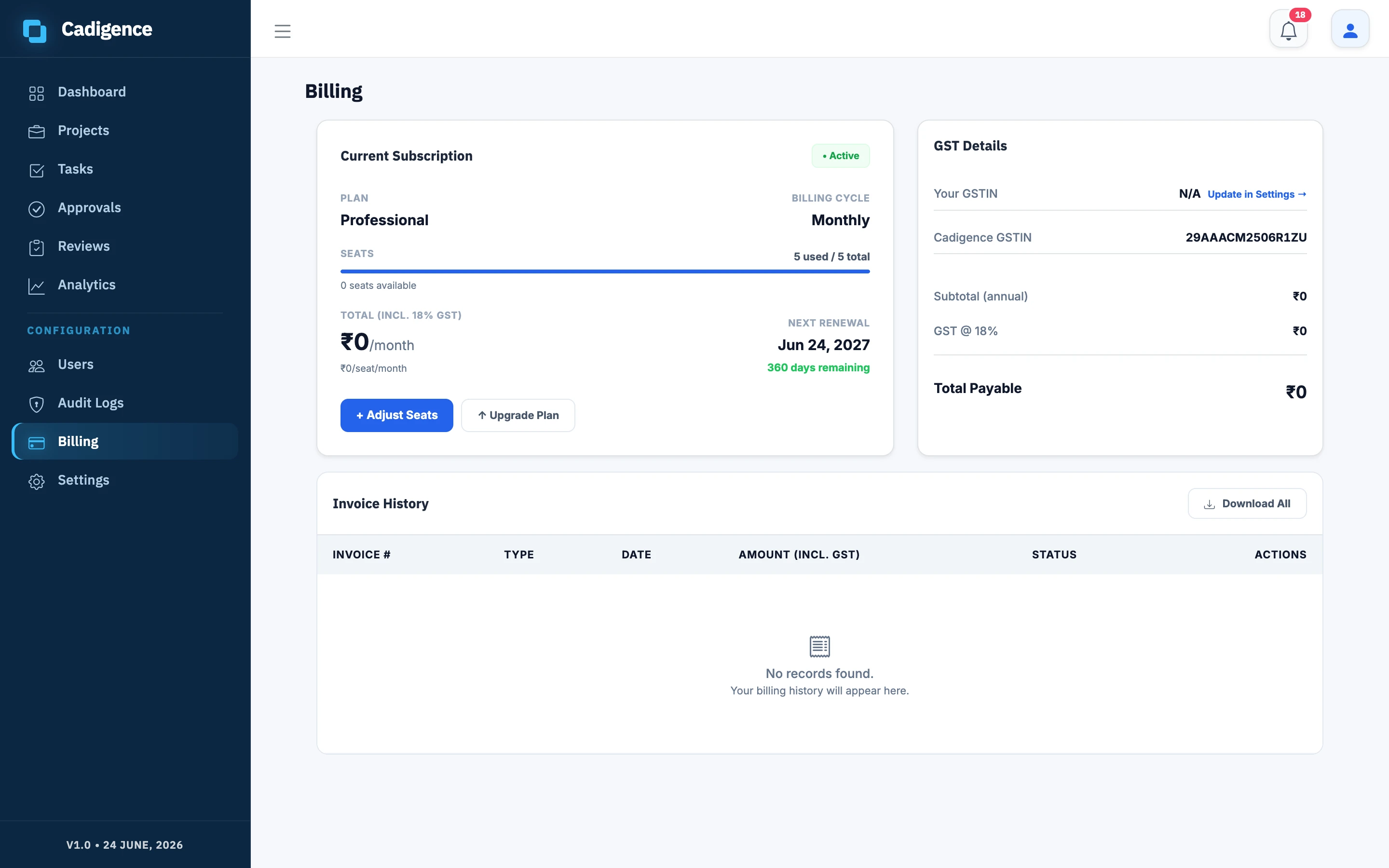
Section titled “Billing and seats”Under Billing / Subscription you manage your plan and seat count. A seat is one designer license; managers, approvers, and clients don’t need one. You can change the seat count as your team grows.
Cadigence is currently in early access and invitation-only, your plan and pricing are confirmed during onboarding.
Oversight
Section titled “Oversight”Admins see the full Dashboard, Analytics, and Audit log across the company, useful for spotting bottlenecks, rework, and violations. See Analytics and reports and Violations and drawing integrity.